When the picture stops.
Use the picture on your screen to narrow down an Xbox playback issue before you change settings or install another player.
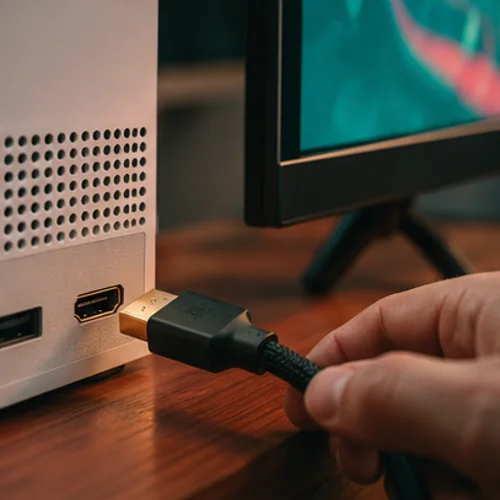
No Xbox home screen
Check that the console is on and its HDMI cable is seated at both ends. Use Input or Source on the TV remote and select the socket the cable is plugged into. If your console picture appears, the TV connection is working. Open the app again.
The player opens but nothing plays
Try one live channel and one on-demand title. If neither starts, check whether another internet app loads on the console. Pause large game updates and ask anyone using the connection whether other devices have slowed down.
If the internet works elsewhere, check the plan end date and confirm which player and sign-in method were supplied. Avoid deleting the player or clearing its saved settings before support checks the symptoms.
One channel stops, but others work
Write down the station, region, local time and what changed. For a movie or show, note its title, year, episode and where playback stopped. If audio only or subtitles are affected, tell support the selected track. This narrows the problem to one stream or one version of a title.
Send what support can use
Include the Xbox model, player name and exact error wording if shown. Crop out login details before attaching a photo. Check the first viewing steps if you are still setting up.